
A capture card is crucial for streamers trying to build a legitimate business, even if you use a console that directly integrates with streaming platforms.
Discover what a capture card does and why it’s better than streaming directly from your PC or gaming console.
What Does a Capture Card Do?

Marinamiltusova2250 via Shutterstock.com.
A capture card is an input device that “captures” game audio and video from your system, converting those signals to digital data. Next, it sends the digital data to your computer for encoding. Your computer can efficiently work with the encoded data, allowing you to record or livestream the combined single.
The exact mechanisms of capturing and recording are highly technical, and I’m not even sure I understand how they work. But we don’t need to understand the technical side to see how capture card data can enhance a stream; we only need to know why it’s necessary and how to use it.
Is a Capture Card Necessary?
A capture card is required to stream from the Nintendo Switch or use two Personal Computers (PCs) in your streaming setup. The Nintendo Switch is the only system that does not offer direct streaming, so you need a capture card to grab the signal and send it to your computer.
If you’re very creative and have other consoles, you might be able to make something work without one. I have a friend who connects Switch to his XBOX and streams Switch games from Xbox. I’m unsure how he manages it, but it works for him.
He can achieve this because the PlayStation 5 and Xbox Series X have built-in streaming capabilities, allowing you to stream directly from one of those consoles to Twitch.
Many people don’t use a capture card when streaming from these systems.
You also don’t need a capture card if you’re streaming from a single PC. Your PC can do everything a capture card can, and you can either record from your PC or stream directly to Twitch (or YouTube, Facebook, etc.).
Is it Better to Stream with a Capture Card?

Although you don’t need a capture card for console and PC gaming, depending on your setup and which platform you use to stream, it’s sometimes better to have one.
Discover how a capture card works and whether you should use one depending on what you use to stream.
Nintendo Switch
So far, the Nintendo Switch does not allow you to stream directly from it. The only option when streaming Switch games (other than creative options) is a capture device.
Xbox
Xbox streamers can use the Xbox Companion App, which lets them connect their streams to OBS (Open Broadcast Software—a top resource for streamers) directly from their console.
Download the Companion App to your PC, ensure the systems are on the same network, and use Microsoft’s built-in screen capture feature to “capture” your Companion App gaming Window and send it to OBS.
If you do this, you don’t need a capture card to stream from an Xbox.
PlayStation
Although PlayStation allows you to stream your gameplay directly from the console, it doesn’t offer a way to connect to OBS (or other streaming software) to integrate your video and audio streams.
However, you can circumvent that by using Sony’s Remote Play feature. This feature lets you connect your console to your PC, similar to the Xbox Companion App.
Unfortunately, reviews for the Remote Play app complain of heavy lags, which may impact your stream quality, so it might be better to use a capture card.
Single PC
Some say the card will relieve some of the pressure on your CPU and make things run more smoothly, but I haven’t found any evidence supporting that.
Every internet thread I’ve found about it says it doesn’t make a difference. The capture card packets the data and sends it between systems for processing; it doesn’t do any of the processing itself.
If you’re streaming from a single PC, you can install OBS and use your computer’s built-in screen capture software to stream without a capture card.
Dual PCs
Many professional streamers use two PCs in their stream setup. They game from one and do all their audio/video/Broadcasting from the other, preventing any computer from getting overburdened.
Dual PC streamers need a capture card to transmit the data between the systems.
Advantages of Capture Card Streaming
Even if you don’t need a capture card, there are some advantages to using one.
Typically, using a capture card with a console offers better frame rates, resolution, and bit rates. It reduces the lag time (though there is always lag time) and eases the burden on your internet bandwidth.
If you want to be a professional streamer, these technical details are vital for producing a high-quality show.
What Kind of Capture Card Should I Get?
Capture cards abound on the market. They come in varying brands and styles, making it difficult to determine which one you should get.
Let’s go through the options together.
Hey folks! Transparency Disclosure- Some of the links in this article are affiliate links. That means I’ll receive a small commission if you decide to click on it and buy something. Don’t worry, it doesn’t cost you anything extra!
Internal vs External Capture Devices
Internal capture cards connect to the inside of your PC tower, and external ones connect to your laptop or PC via HDMI cable or USB.
If you’re using a laptop for streaming, this is an easy choice—you need an external capture card.
The advantage of using an internal capture card if you have a desktop gaming PC is that it connects directly to your motherboard, thus ensuring the fastest setup possible. Faster is always better when it comes to streaming.
External capture cards are more portable, and with USB3 connections, there isn’t a noticeable difference in stream speed compared to internal cards.
Best External Capture Cards
Although most external capture cards will get the job done, I have three favorites. Each of these options provides excellent video quality with HD capture.
They all have the same basic functionality, so which one you use depends on personnel preference. Some feel more comfortable with Elgato’s brand recognition, while others prefer budget-friendly options.
You can’t go wrong with any of these choices.
Elgato 4K X Capture Card
The next generation of Elgato capture cards is here!
The 4K X features 4K resolution (as the name implies) and a standard 144 frames per second (fps). That’s more than double our old favorite, the Elgato HD 60S.
If you have HDMI 2.1 support, you can get frame rates as high as 240fps!
Of course, the human eye can only see up to 60fps, so if you’re just streaming, you don’t need that much, but if you’re doing slow motion effects for YouTube videos or something like that, the higher frame rate can help.
Elgato’s 4K also features Variable Refresh Rate passthrough to ensure smooth gameplay and ultra-low latency with the USB 3.2 to keep everything synced.
It’s the best capture card from the best capture card company, and is sure to make any stream perfect.
Elgato Game Capture HD 60S
The Elgato Game Capture HD 60S may be outdated, but it’s still a great capture card. It features built-in software to help you get up and running and can capture up to 60 fps with a recording speed of up to 1080p.
Although 60 fps seems low compared to newer options, it’s what streamers relied on for years. If you need a great card for a little less than the Elgato 4K, the HD 60 S won’t fail you.
Razer Ripsaw HD
The Razer Ripsaw also boasts recording speeds of 1080p and a frame rate of 60 fps, but it does not have its own streaming software. However, if you use Streamlabs or OBS to stream, you probably don’t need it.
The biggest problem with Razer is that it can be particular. I typically stream using the Razer, and although it always eventually works, it sometimes takes some convincing.
I’ve had to unplug it and replug it numerous times to get it to work or completely restart my computer. Sometimes I have to reload the scene to get it to work. It’s impossible to tell if these issues arise from the card itself or from other streaming variables (computer settings, network speed, connectivity, etc.).
Despite the difficulties with setup, the Razer Ripsaw is a solid capture card and perfect for streamers who don’t want to spend big bucks on an Elgato.
Streamers who are more technologically savvy than I am would likely have fewer problems with it.
AVerMedia 4K60
If the Elgato and the Ripsaw are too expensive, consider AVerMedia’s 4K60 HDR capture device.
The low-end model captures in 1080 resolution at 60 FPS, all for less than $100. The higher-end modules offer improved VPR passthrough, which prevents latency, but at a lower FPS (30).
Avermedia makes quality capture cards and this is their most affordable option.
Best Internal Capture Card
Internal captures are better if you use a desktop rather than a laptop for gaming, as they reduce latency. On the downside, they are also generally more expensive and less portable.
However, they’re the best option if you want a professional-quality stream and are willing to pay the higher price tag.
Elgato Game Capture 4K Pro
Elgato also tops the list for best internal capture cards for the Switch. It’s a solid brand well-known in the streaming world and consistently makes top-of-the-line hardware.
The 4K Pro captures at up to 240 fps in 1080 resolution. It features Variable Refresh Rate (VRR) passthrough which reduces latency, making for seamless gameplay.
You can connect the card to your PC using an open PCIe 2.0×4 slot.
AVerMedia Live Gamer 4K
The AverMedia Live Gamer 4K can also capture at a frame rate of up to 240fps. It also includes three preset modes of RGB lighting to help you create the perfect scene while streaming.
The hardware interface is the same as with Elgato (PCIe x4) making the AVerMedia a top choice if you need to save a few bucks.
What is a Good, Cheap Capture Card?
I get it—the common theme with these capture cards is that they cost a lot of money. I think there’s only one on the list so far that’s less than $150!
Are cheaper options available?
Yes!
The Y&H HDMI game capture card is the cheapest capture card on the market that has good reviews.
It offers live streaming functionality and 1080p video recording. At less than $100, it’s definitely better for your wallet!
It’s a great choice if you don’t want to invest a lot of money in your stream.
Shop Capture Cards
Don’t see your perfect capture card for the Switch? Shop options at Best Buy!
How Do I Set My Capture Card Up?
Setting up an external capture card is a breeze.
Most of the video capture will be done through HDMI, so you only need to connect the correct cable to the correct location. The HDMI input cable goes from the capture device to your console (or whatever you are playing the game on), and the HDMI output capture cable goes from your capture card to your TV (or whatever you are viewing the game on).
The USB cable (USB 3/USB-C; they are the same thing) connects the capture card to your computer. The game capture data is then sent to whatever streaming/recording software you are using. I use Streamlabs, but some cards have their own software, and various other options are available.
What Else Do I Need for Streaming?

Krakenimages.com via Shutterstock.com.
The tech needed for a great looking stream is a matter of opinion. If you’re researching what a capture card does you’re probably on the right track!
But you do need a bit more than a capture card. Although you can stream without them, I highly recommend a webcam and a microphone.
For more information on setting up your stream, check out this guide to starting a stream.
Recap: What Does a Capture Card Do?
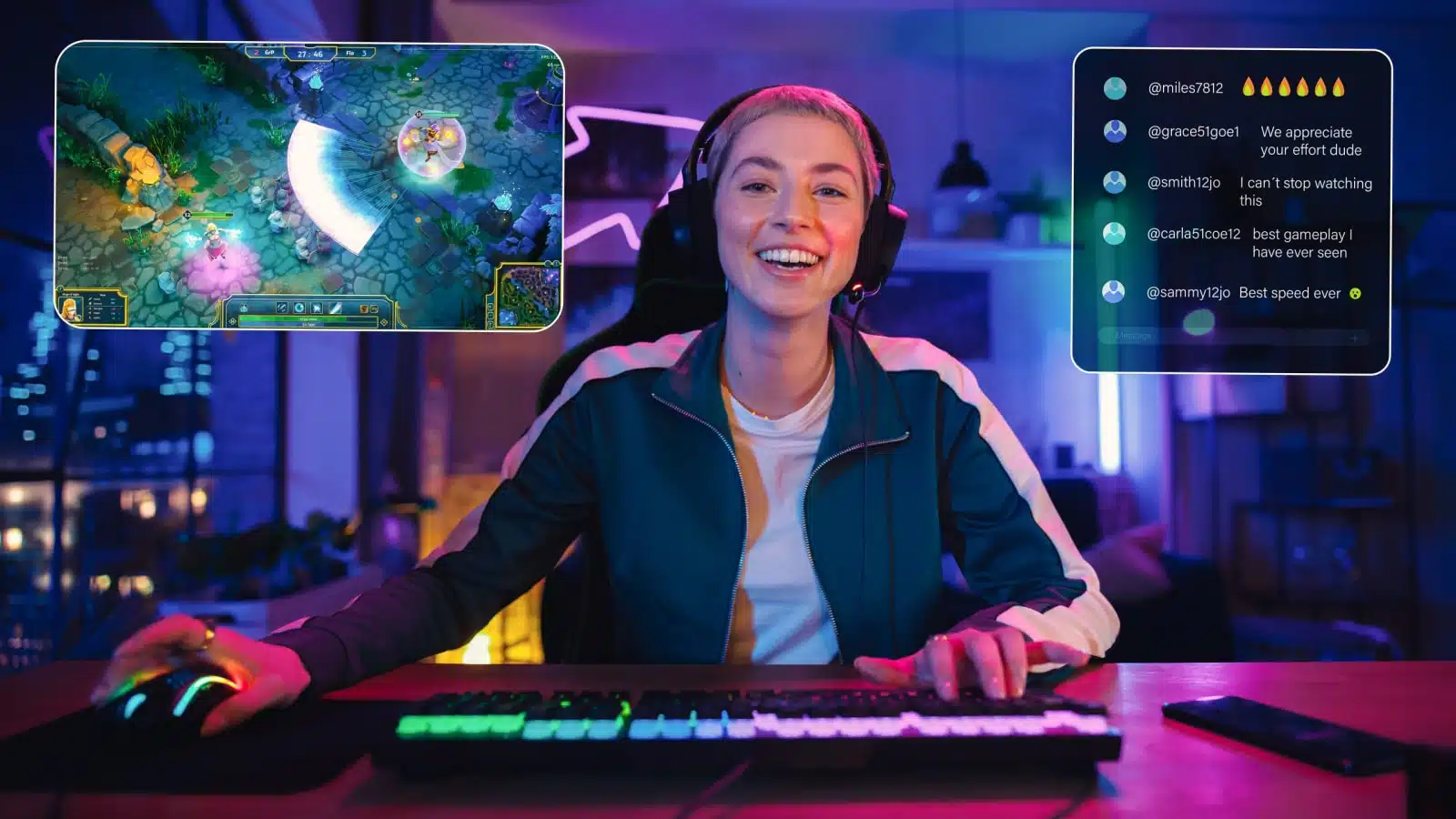
So, what does a capture card do? It helps you stream by capturing data input/output. It also aids recording, not just streaming. You can use it as a video capture device and upload it to YouTube.
Whether you live stream or not, a capture card can help you improve your video content and give you enhanced streaming and recording options.
I hope this answers all your questions, from what a capture card does to which one is right for you. If so, get your perfect capture card on Amazon and start your stream today!
Interesting – I always wondered how that worked. I’ve streamed to Twitch on my iPhone a couple of times but it didn’t have simultaneous video of me at all, just the game play. I decided I’m not old enough to be interesting from that angle, and definitely not good enough to be interesting anyway, so I decided maybe streaming wasn’t for me. I was live streaming my podcast though, and Streamlabs is a great app for that. It let me get around that 100 follower limit for streaming on YouTube. I stopped doing that though, since I’m mostly doing them on Zoom now anyway…
There’s a correction on the AVerMedia Live Gamer Portable 2 Plus. You mention it’s USB3 but in fact it’s a lovely USB2. It’s a great unit but I’m holding on getting it just because of that.
Thank you for catching that! Updated!